Part 2: Lock It Up
Chapter 1: Encryption 1
What it does. Encryption 1 locks a piece of text or a single file with a password. The result is a locked file ending in .pvault. Only someone with the password can turn it back into the original.
When to use it.
Sending a document, photo or scan by email or messenger.
Keeping a private file in a cloud folder or on a USB drive.
Turning a private note (an account number, an address, a message) into a locked file.
The page has three tabs: Encrypt Text, Encrypt File and Decrypt.
Choosing a password
Every tab that locks something asks for the password twice: once in Password / passphrase, and again in Confirm password. The password must have:
at least 8 characters,
at least one capital letter, and
at least one special character, such as ! or #.
A strength bar under the box shows how strong it is, and lists anything still missing.
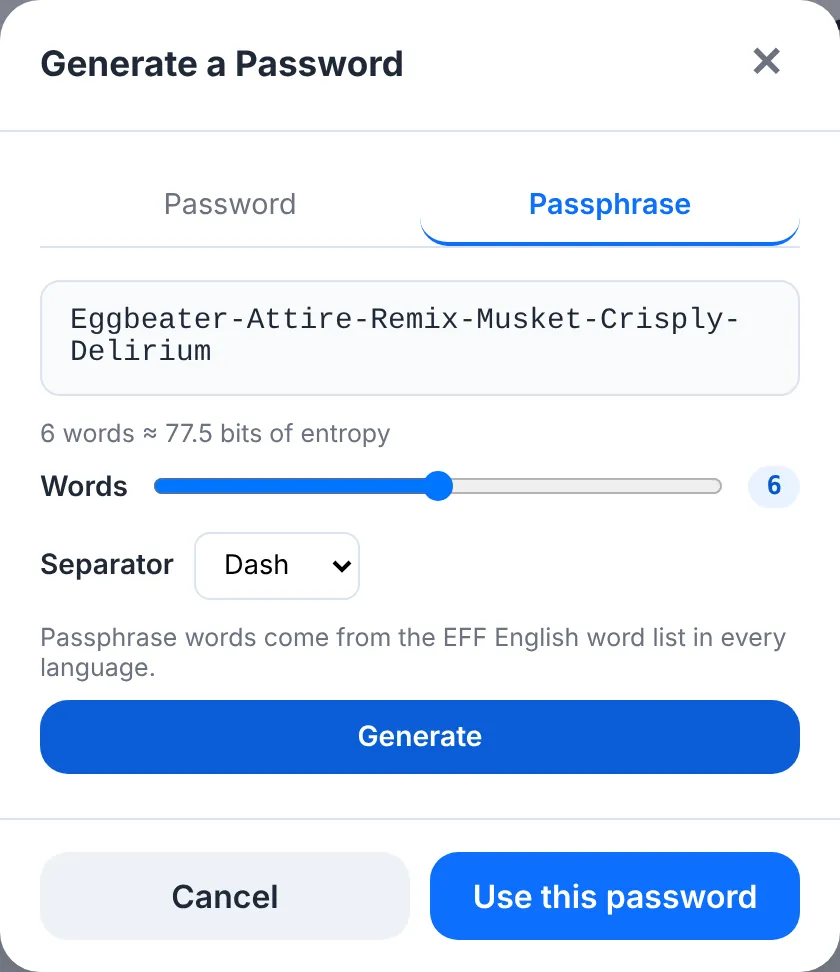
Not sure what to pick? Press Generate. Choose a password (random characters) or a passphrase (random words, easier to type). The tool fills in both boxes for you and copies the password to your clipboard. Save it somewhere safe right away, for example in Vault. It cannot be recovered later. Press Show to see what you typed.
Locking a file
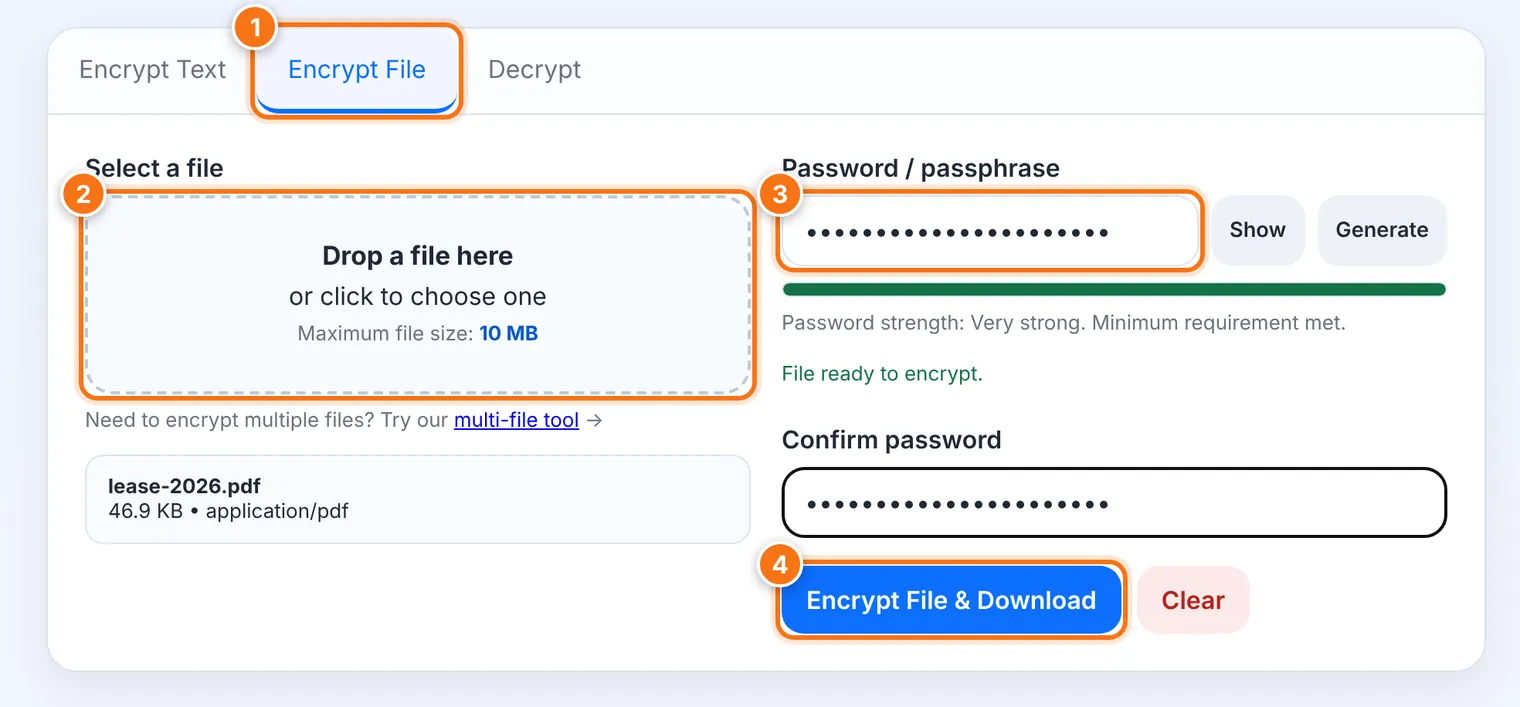
Choose the Encrypt File tab.
Drop your file onto the box, or click it to choose one. The file can be up to 10 MB.
Type and confirm a password, or press Generate.
Press Encrypt File & Download.
The locked .pvault file is saved to your Downloads folder.
For your safety, the tool then clears your file and password from the page.
In Chrome, Edge and Brave you'll also see Ask me where to save each encrypted file. Tick it to choose the folder yourself, for example straight onto your USB drive.
Locking a piece of text
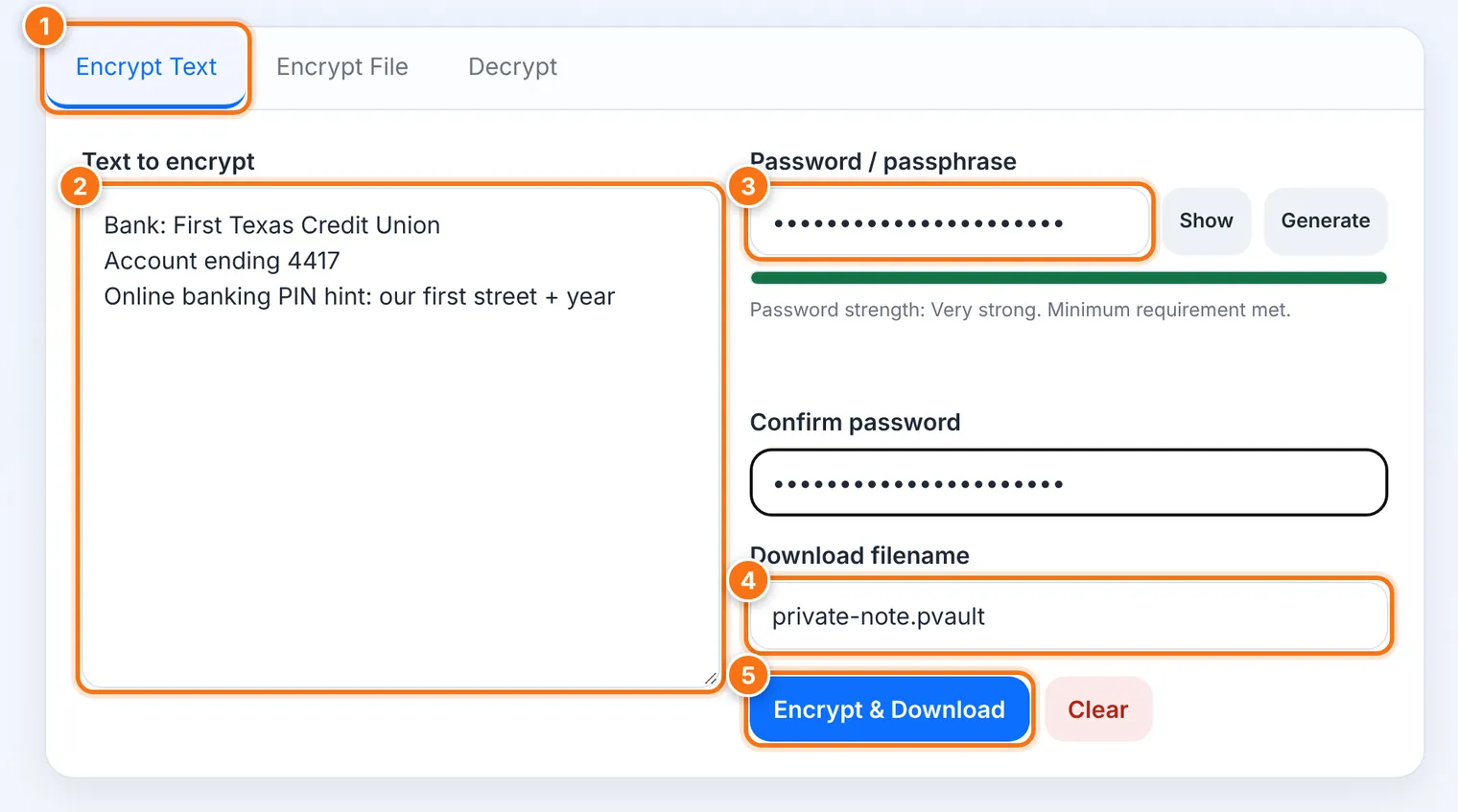
Choose the Encrypt Text tab.
Type or paste your text into Text to encrypt.
Type and confirm a password, or press Generate.
If you like, change the Download filename. It starts as private-note.pvault.
Press Encrypt & Download. The locked text is saved as a .pvault file, and the page is cleared.
Opening (decrypting)
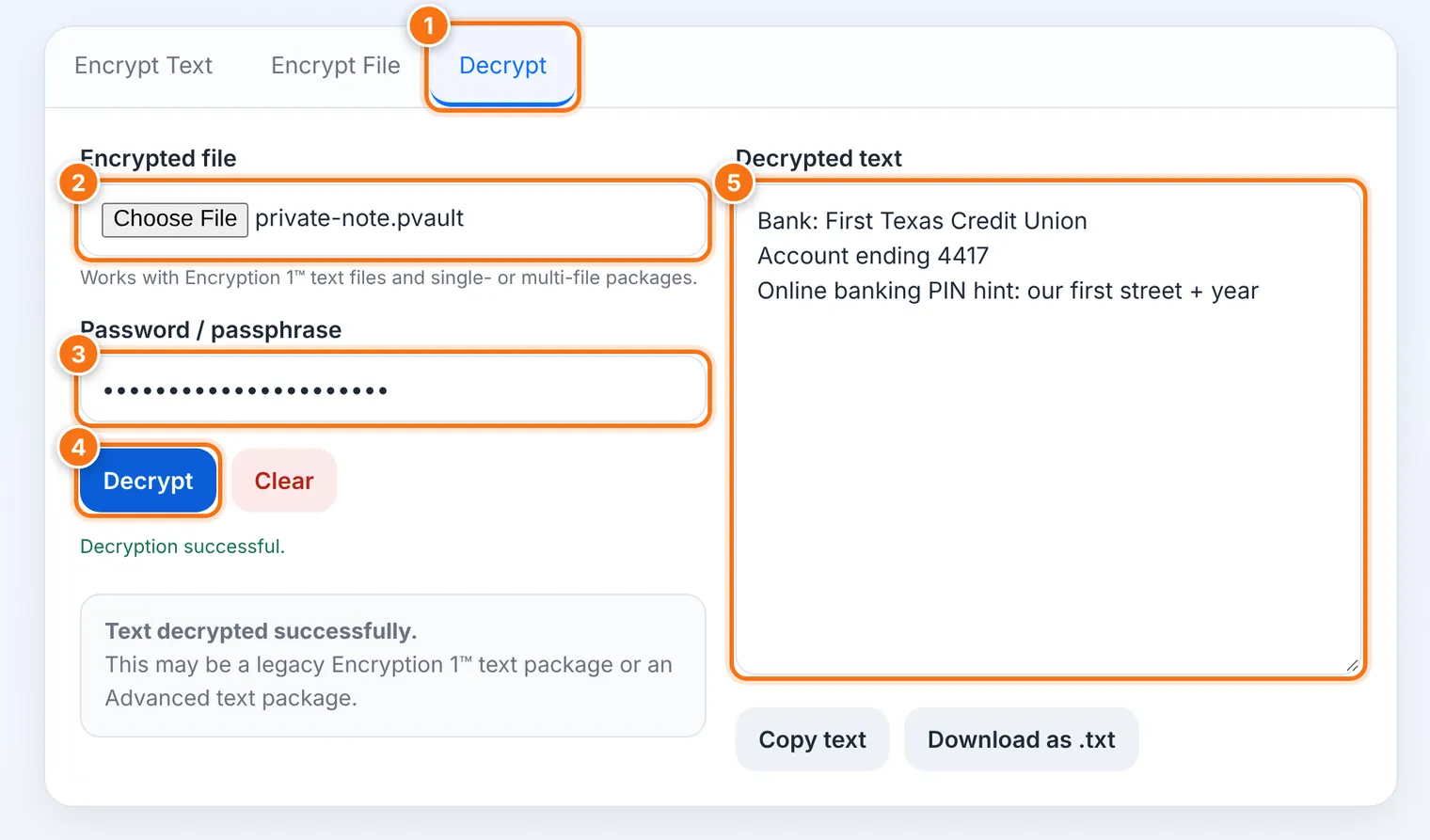
The Decrypt tab opens every kind of Encryption 1 file: locked text, a locked file, or a Multi-File package.
Choose the Decrypt tab.
Under Encrypted file, choose the .pvault file.
Type the password it was locked with.
Press Decrypt.
Locked text appears under Decrypted text. Use Copy text or Download as .txt. A locked file is restored and downloaded straight away. If you need it again, use Download restored file again.
If the password is wrong, the tool says decryption failed and nothing is changed. A wrong guess never damages the locked file.
Careful with "Download as .txt": the .txt file is not locked. Anyone who finds it can read it. Delete it when you're done.
Clear
The Clear button empties the tab. If your clipboard holds a password the tool generated, Clear wipes that too.
Sharing the password
Never send the password in the same email or chat as the .pvault file. If someone reads that message, they get both. Instead:
Tell it to the person by phone or in person, or
Send it by a different app than the file, or
Send it with Burn, so it can only be read once.
What it does not do
It does not hide the fact that a file exists, or how big it is. It only hides what's inside.
It does not delete your original file. Delete it yourself once you've tested the locked copy.
It locks one file at a time, up to 10 MB. For several files use Multi-File (Chapter 2). For folders or bigger files use Pack (Chapter 4).
Common problems
| Problem | What to do |
|---|---|
| "The passwords do not match" | Retype the password in both boxes, or press Show to check them. |
| The tool won't accept my password | It needs 8 or more characters, a capital letter and a special character. The strength bar shows what's missing. |
| "Decryption failed" but I'm sure the password is right | Check Caps Lock and the keyboard language. Passwords are case-sensitive, so Garden1! and garden1! are different. |
| "That file is … Encryption 1 supports files up to 10 MB" | Use Pack for larger files. |
| I can't find the saved file | Look in your Downloads folder, or the Files app on iPhone or iPad. |
| The page says my browser is too old | Update the browser, or open the page in a newer one. See 1.3. |
| I forgot the password | Nobody can recover it. That is also what keeps your file safe from everyone else. |