Part 2: Lock It Up
Chapter 3: EC-1 Journal
What it does. The EC-1 Journal is a private place to write. Each entry has a title, the date, and your text. It's locked with a password and saved as its own .pvault file, which only you can open. You can open an entry later, read it, and save an updated version.
When to use it.
A diary or personal notes you don't want anyone else to read.
Notes from a meeting, interview or trip, kept private on a shared or travel computer.
Thoughts you want on a USB drive, readable anywhere with the Portable Edition.
The page has two tabs: Write & Encrypt and Open & Decrypt.
Writing and locking an entry
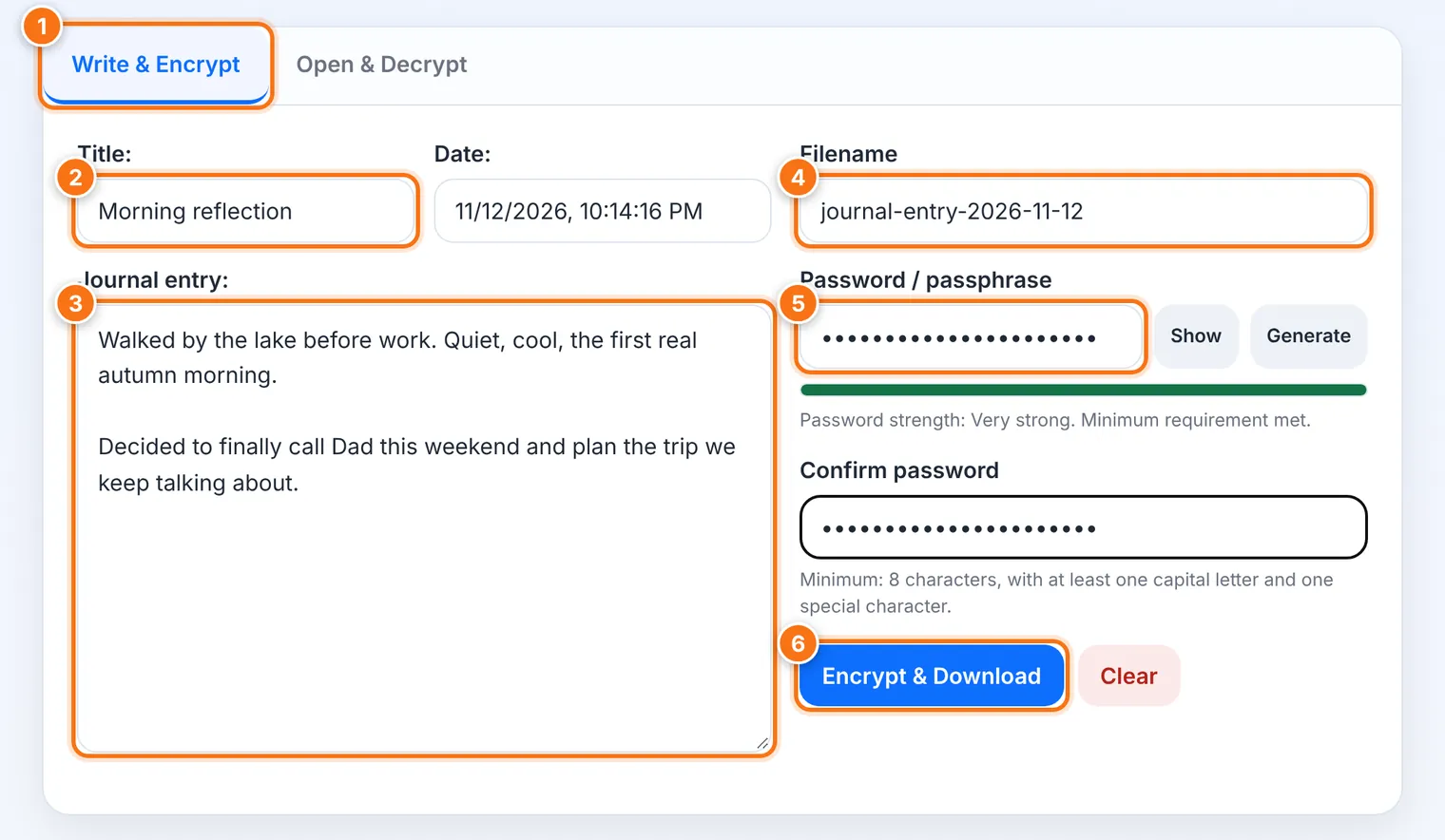
Choose the Write & Encrypt tab.
Give the entry a Title, such as Morning reflection. The Date is filled in for you.
Write in the Journal entry box.
Check the Filename. It starts as journal-entry- followed by today's date. The tool always adds .pvault to the end.
Type and confirm a password, or press Generate. The rules are the same as in Chapter 1: 8 or more characters, a capital letter and a special character.
Press Encrypt & Download. The locked entry is saved to your Downloads folder, and the page is cleared.
Reading an entry
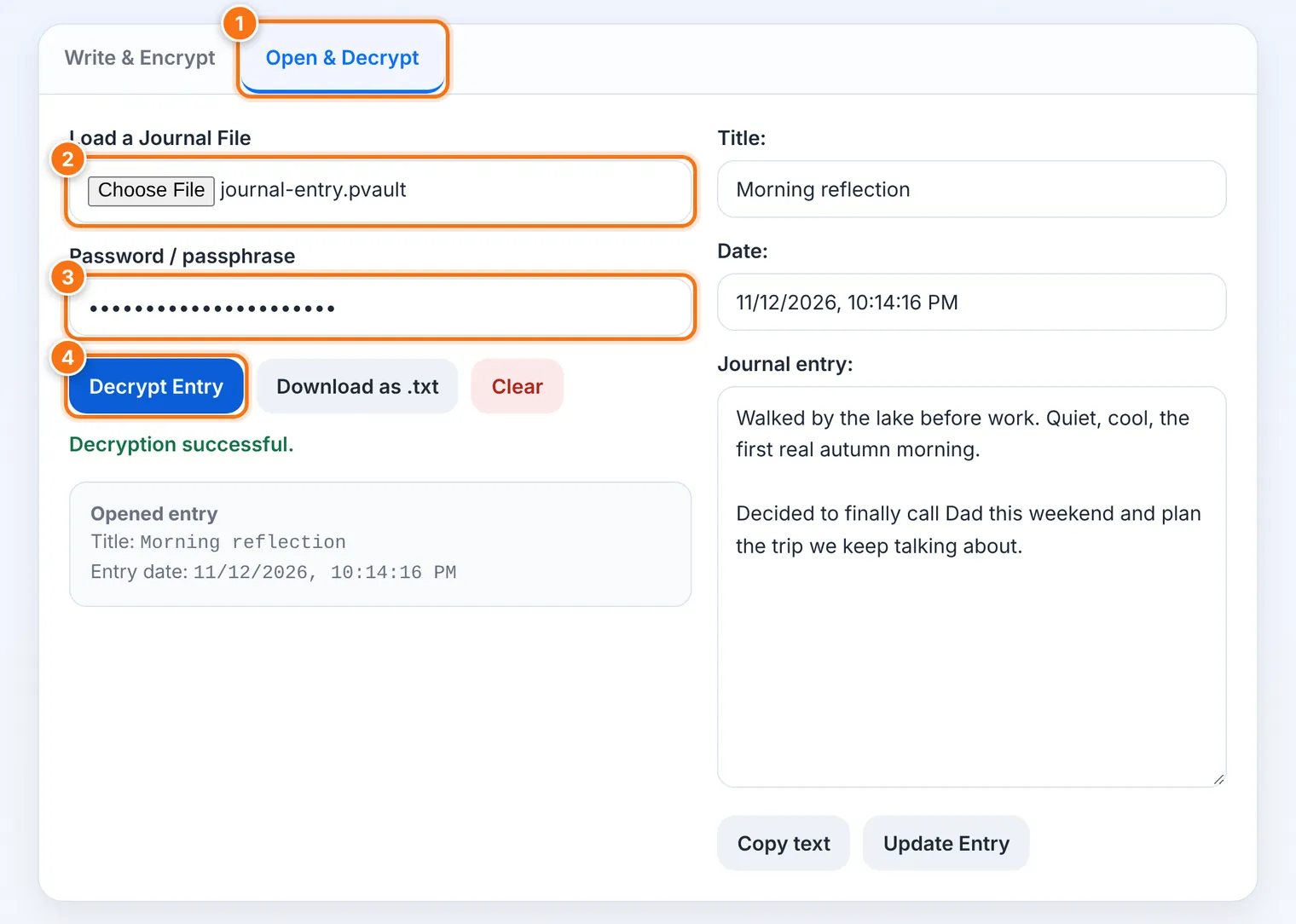
Choose the Open & Decrypt tab.
Under Load a Journal File, choose the entry's .pvault file.
Type the password used to lock this entry.
Press Decrypt Entry. The title, date and text appear.
When you're done, close the tab. Nothing stays behind on the computer.
Changing an entry
Open the entry as above.
Edit the title or the text right there on the screen.
Keep the same password in the password box.
Press Update Entry. The updated entry is saved as a new file named journal-entry-updated- plus the date. The entry keeps its original date.
Your old file is not changed. Once you've checked the new one opens, delete the old one, or keep both as a history.
Copy and plain-text download
After opening an entry, you can use Copy text or Download as .txt. The .txt file is not locked. Anyone who finds it can read it, so delete it when you no longer need it.
Tips
Keep your entries in one folder, on your USB drive or in a cloud folder. They're locked, so a cloud folder is safe.
The file name is not locked. Don't put private words in it.
Use one password for the whole journal if you want every entry to open the same way. Store it in Vault.
Write offline. On a train or plane, the Portable Edition works with no internet at all.
What it does not do
It does not save as you type. If you close the tab before pressing Encrypt & Download, the entry is lost.
It keeps each entry in its own file. It doesn't collect them into one diary or sync them between devices.
It does not hide the file name, the file's size, or when the file was saved.
Common problems
| Problem | What to do |
|---|---|
| I closed the tab before saving | The entry is gone. Nothing was stored, which is also what keeps it private. Save long entries in parts. |
| "Please re-enter the password to save the update" | Type the entry's password in the password box again, then press Update Entry. |
| An old entry won't open | It may have been locked with a different password. Try the ones you used around that date. |
| I have two versions of an entry | Update Entry always saves a new file. The one with updated in its name is the newer one. |