Part 2: Share It Safely
Chapter 8: Wi-Fi Card Beta
Beta. Wi-Fi Card is new and in public beta testing. Its wording and extra features may change. If something doesn't work as described, please tell us through the Contact & Bug Reports form.
What it does. Wi-Fi Card makes a printable QR code for your Wi-Fi. Guests point their phone camera at it and join, with no password read aloud, no sticky notes and no typos. Everything happens on your device. Your network name and password are never uploaded.
When to use it.
A café, shop, office or waiting room with guest Wi-Fi.
A church, club or community hall, so visitors can get online without asking.
Your home, for visiting family and friends.
The page works in three steps, top to bottom.
1. Your network
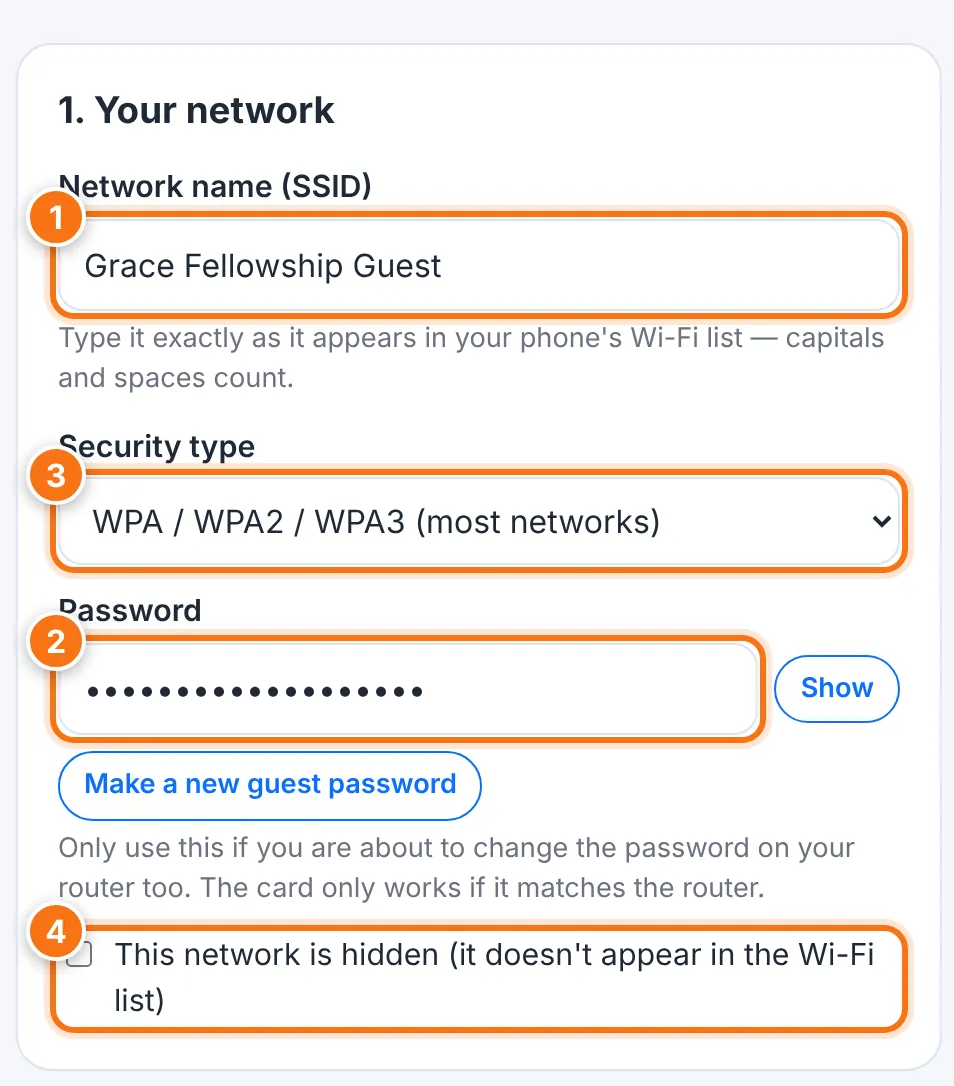
Type the Network name (SSID) exactly as it appears in your phone's Wi-Fi list. Capitals and spaces count.
Type the Password. Use Show to check it.
Choose the Security type. Most networks are WPA / WPA2 / WPA3. Choose WEP only for very old routers, or No password for an open network.
Tick This network is hidden only if your network doesn't appear in the Wi-Fi list.
About "Make a new guest password": use it only if you're about to change the password on your router too. The card only works if it matches the router exactly.
2. Your card
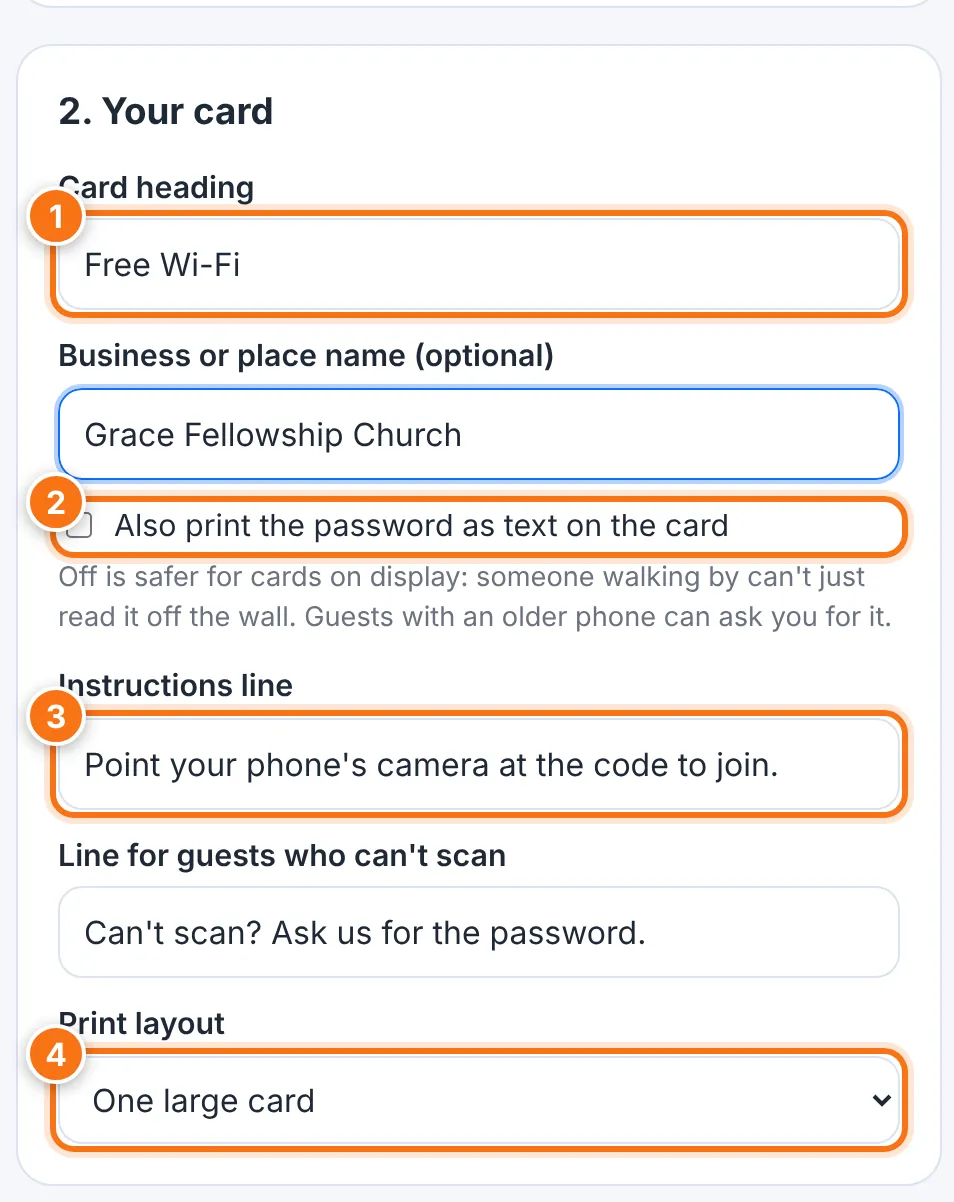
Set the Card heading, such as Free Wi-Fi, and if you like the Business or place name.
Decide on Also print the password as text on the card. It's off by default, which is safer for a card on display: someone walking by can't simply read it off the wall. Guests with an older phone can ask you for it.
Adjust the Instructions line and the Line for guests who can't scan if you like. The defaults are Point your phone's camera at the code to join and Can't scan? Ask us for the password.
Choose a Print layout: One large card, or Four cards per page to cut out.
3. Preview, print or save
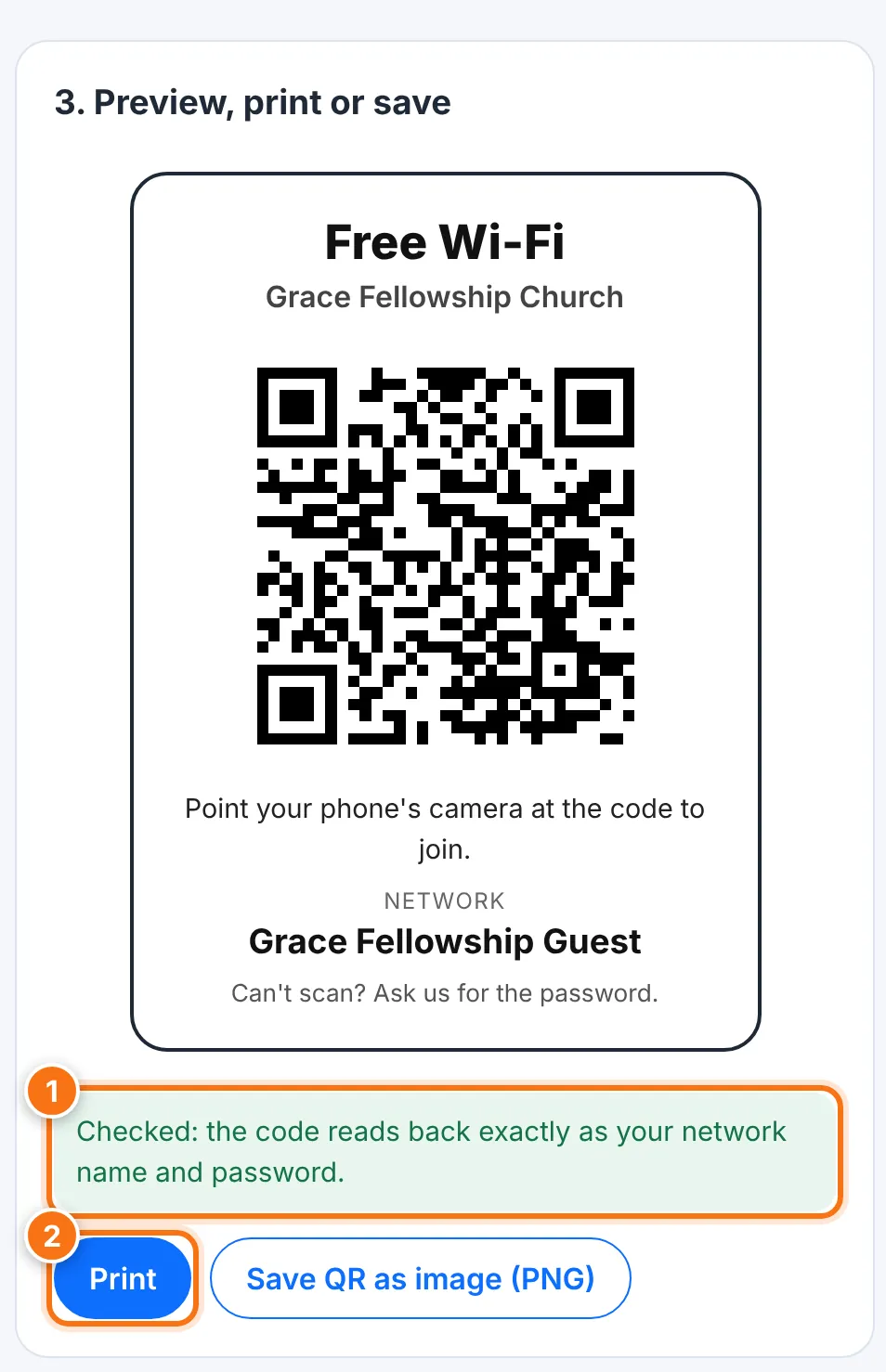
Check the preview. The tool tests the code and shows Checked when it reads back exactly as your network name and password.
Press Print, or Save QR as image (PNG) to use the code in your own design.
Will every phone scan it?
iPhones (iOS 11 and later) and most Android phones (Android 10 and later) join straight from the camera or the Google Lens / QR scanner. Older phones may need a scanner app, or the "ask us" line on the card.
What this card does and doesn't protect
It does: stop the password from being read aloud, written on sticky notes or copied down wrong. With the printed password switched off, a passer-by can't just read it.
It doesn't: keep anyone off your network who scans the code. Many phones can also show the password once they've joined. A QR code is a convenience, not a lock.
Good practice for businesses, churches and other public places:
Put guests on a separate guest network, never the one your registers, cameras or office computers use.
Change the guest password every so often, and print new cards. It takes a minute here.
Keep the card where you can see it, like a counter or table, not in a window facing the street.
Common problems
| Problem | What to do |
|---|---|
| Guests' phones don't join | Check the network name and password match your router exactly, including capitals and spaces. |
| "This security type needs a password" | Type the password, or choose No password if your network is open. |
| "WPA passwords must be at least 8 characters" | Check the password against your router. |
| "WEP passwords are usually 5, 13, 10 or 26 characters long" | Check the password on your router if guests can't join. |
| "The code didn't read back correctly" | Don't print it. Try a shorter name or password, and please tell us about it. |
| An older phone can't scan | Use a QR scanner app, or give the guest the password yourself. |