Part 2: Share It Safely
Chapter 7: Encrypted QR Beta
Beta. Encrypted QR is new and in public beta testing. Its wording and extra features may change. If something doesn't work as described, please tell us through the Contact & Bug Reports form.
What it does. Encrypted QR seals a short message inside a QR code that only someone with the password can read. You can print it, save it as an image, or send it. Anyone can scan the code, but without the password they only see scrambled text. Sealing and opening happen on your device. Your message and password are never uploaded.
When to use it.
A private note on paper: in a card, a book, or a letter.
A message to leave for someone, like a safe combination or where a spare key is, that only they can read.
A short secret to keep with your papers, readable later with the password.
The page has two tabs: Seal a message and Open a code.
Sealing a message
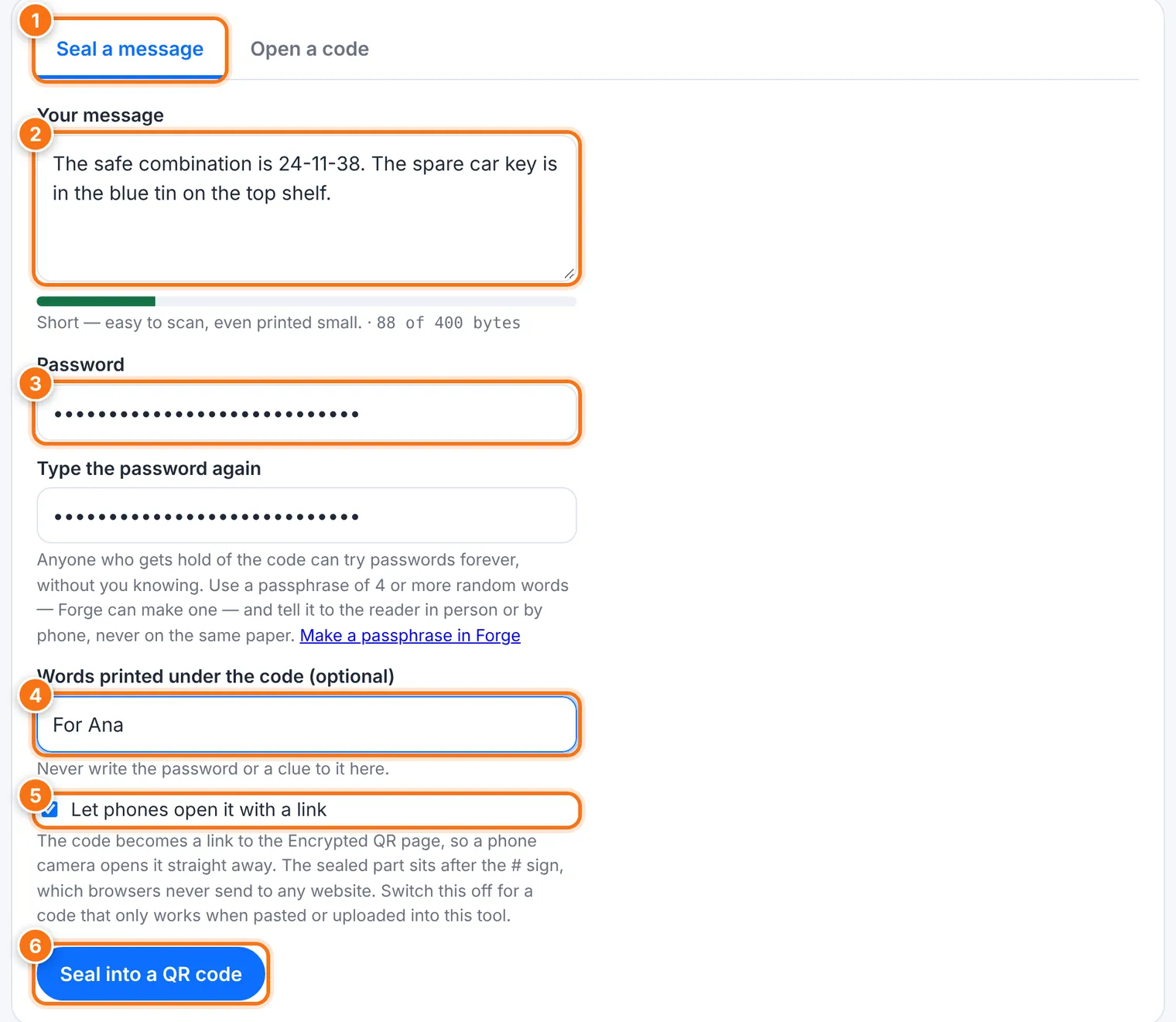
Choose the Seal a message tab.
Type in Your message. A meter shows how much room is left. One code holds up to 400 bytes, which is a few hundred letters. Shorter messages make codes that are easier to scan.
Type a Password, then type it again. Use a passphrase of 4 or more random words. Use Make a passphrase in Forge if you need one.
If you like, add Words printed under the code, such as For Ana. Never write the password, or a clue to it, there.
Leave Let phones open it with a link switched on if you want a phone camera to open the code straight away (see below).
Press Seal into a QR code. It takes a second, on purpose: that's what makes guessing passwords slow.
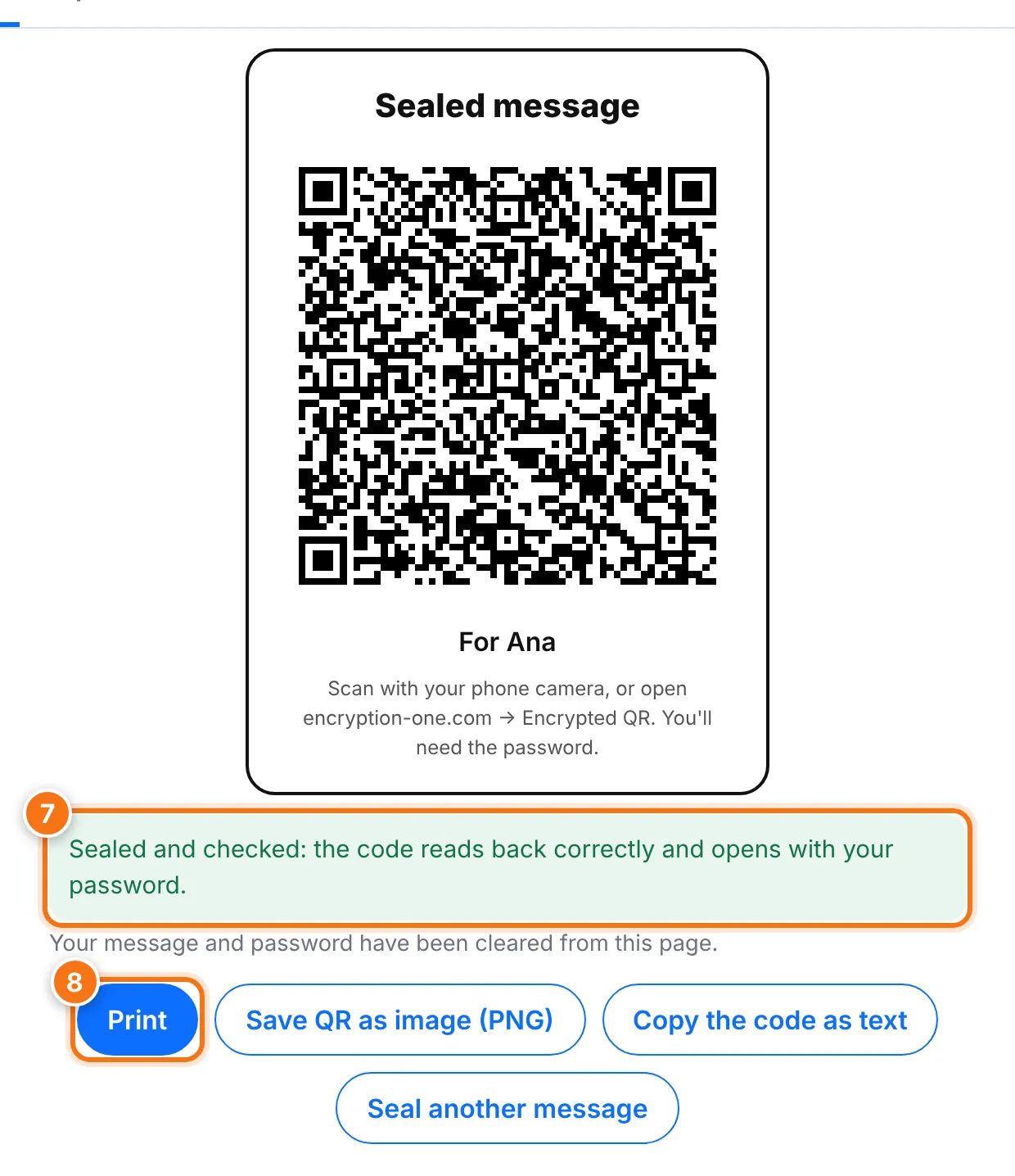
The tool checks the new code. You should see Sealed and checked. Your message and password are then cleared from the page.
Choose Print, Save QR as image (PNG), or Copy the code as text. Seal another message starts over.
How big to print it
| Message length | What the tool says | Print size |
|---|---|---|
| Short | Easy to scan, even printed small | Any size |
| Getting long | Print the code at least 5 cm (2 in) wide | 5 cm (2 in) or more |
| Very long | Print it large and test-scan before handing it over | 7 cm (3 in) or more |
For anything longer, shorten the message, or use Encryption 1 for files and Burn for one-time online sharing.
"Let phones open it with a link"
With this on, the code is a link to the Encrypted QR page. A phone camera opens it directly, and the reader only has to type the password. The sealed part of the link sits after the # sign, which browsers never send to any website, so the server never sees it.
With it off, the code only works when it's scanned, uploaded or pasted into the Encrypted QR tool itself.
Opening a code
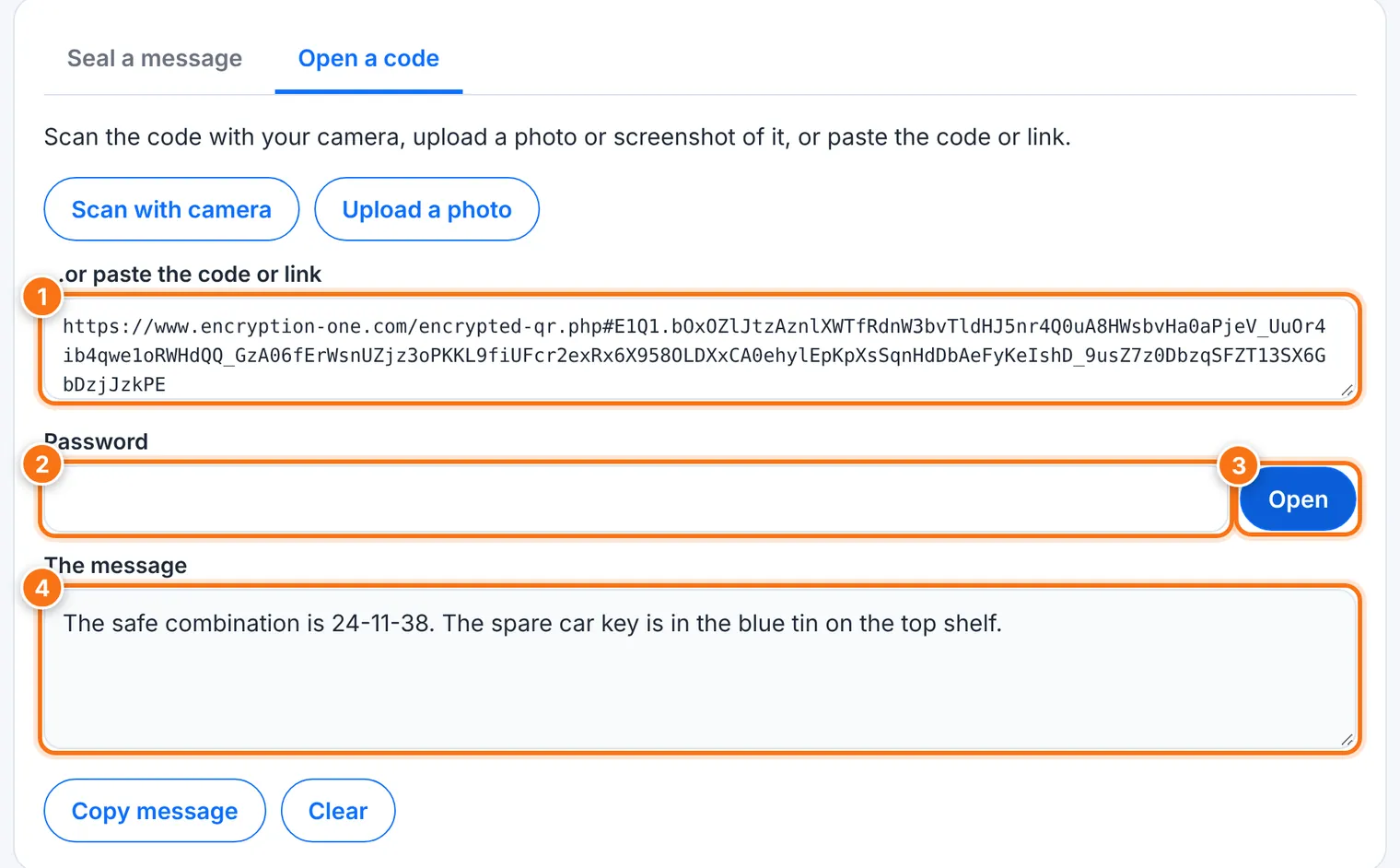
Point your phone camera at the code, or open the Open a code tab and choose Scan with camera or Upload a photo. You can also paste the code or link.
When you see Code found, type the password.
Press Open. The message appears.
Use Copy message if you need it, then Clear.
Sharing the password
The code itself isn't secret: anyone who finds it can photograph it and try passwords for as long as they like, without you knowing. So:
Use a long passphrase of 4 or more random words.
Tell the password to the reader in person or by phone.
Never write it on the same paper as the code.
What it does not do
It isn't for long text or files. Use Encryption 1 for those.
There is no recovery. If the password is forgotten, nobody can open the message, including us.
It can't stop someone from copying the code. Only the password protects the message.
Common problems
| Problem | What to do |
|---|---|
| "Too long for one QR code" | Shorten the message. |
| "No QR code found in that picture" | Take a sharper, closer photo with the whole code in view. |
| "This isn't an Encrypted QR code" | It's probably an ordinary QR code. Your phone camera can read those directly. |
| "Wrong password — or the code was damaged" | Check capitals and spaces in the password. If the code is torn or smudged, it may not open. |
| "The camera isn't available here" | Allow camera access for the site, or upload a photo of the code instead. |
| "The code didn't read back correctly" | Don't use that code. Try a shorter message, and please tell us about it. |