Part 2: Clean It Before It Leaves
Chapter 10: Redact Beta
Beta. Redact is in public beta testing. Its wording and extra features may change. If something doesn't work as described, please tell us through the Contact & Bug Reports form.
What it does. Redact hides personal details before you share. In a photo or screenshot, you draw solid boxes over faces, names, account numbers or license plates, and Redact saves a new, checked copy. In text, it finds names, emails, phone numbers, card numbers and ID numbers, and replaces them. Everything happens on your device, and your original is never changed.
When to use it.
Sharing a screenshot of a bank statement, a bill or a chat, with the private parts covered.
Posting a photo with a child's face, a house number or a license plate hidden.
Forwarding an email or notes with names and contact details taken out.
The page has two tabs: Photo and Text.
Redacting a photo or screenshot
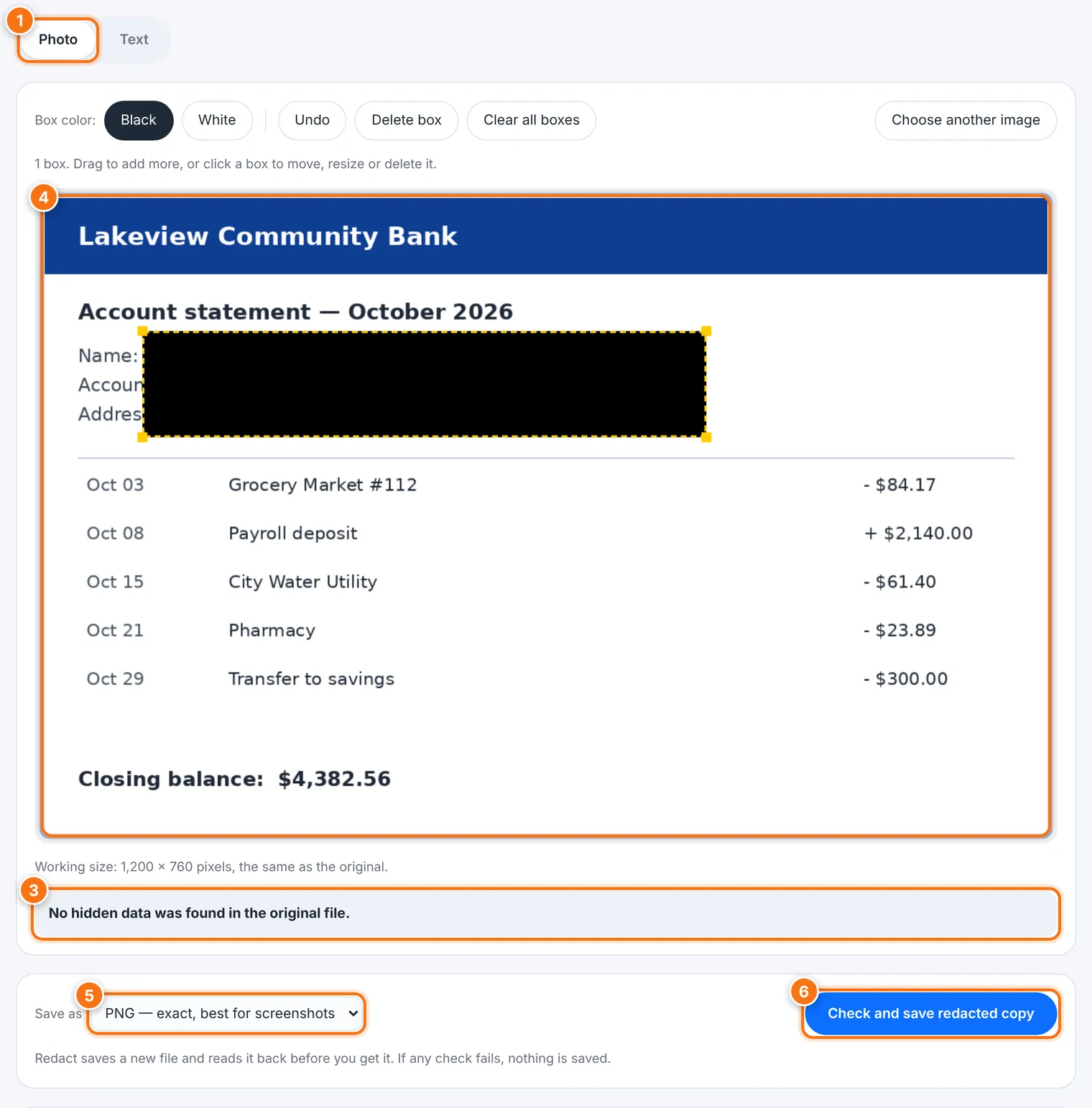
Choose the Photo tab.
Press Choose image, drag the image onto the page, or paste a screenshot. Redact opens JPEG, PNG, WebP and GIF images, up to 60 MB.
Redact tells you whether the file carries hidden data, such as a GPS location, camera details or a small preview image. None of it goes into the new copy.
Drag across anything you want hidden. Each drag makes a solid box.
Click a box to select it. Drag it to move it, or drag a corner to resize it.
Use Delete box, Undo or Clear all boxes to fix mistakes.
Box color can be Black or White.
Under Save as, choose PNG (exact, best for screenshots) or JPEG (smaller, good for photos).
Press Check and save redacted copy.
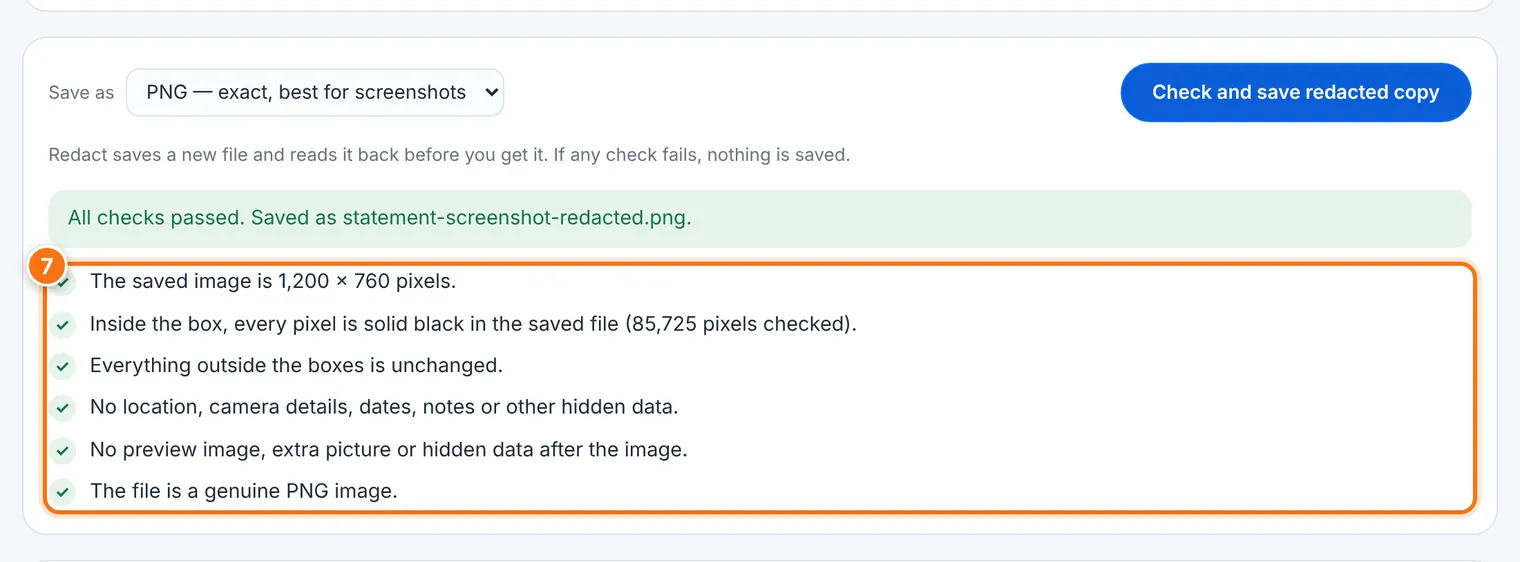
Redact saves the new file, opens it again the way anyone receiving it would, and checks it. You'll see a list of passed checks and All checks passed. If any check fails, nothing is saved.
Covering things well
Cover generously. Include the whole word or number and a little margin. The edges of letters can be enough to guess what was there.
Look everywhere. Check reflections, badges, screens and papers in the background.
Why only solid boxes? Blurring and pixelating can sometimes be undone or guessed, especially for text and numbers. That's why Redact doesn't offer them.
Hiding details in text
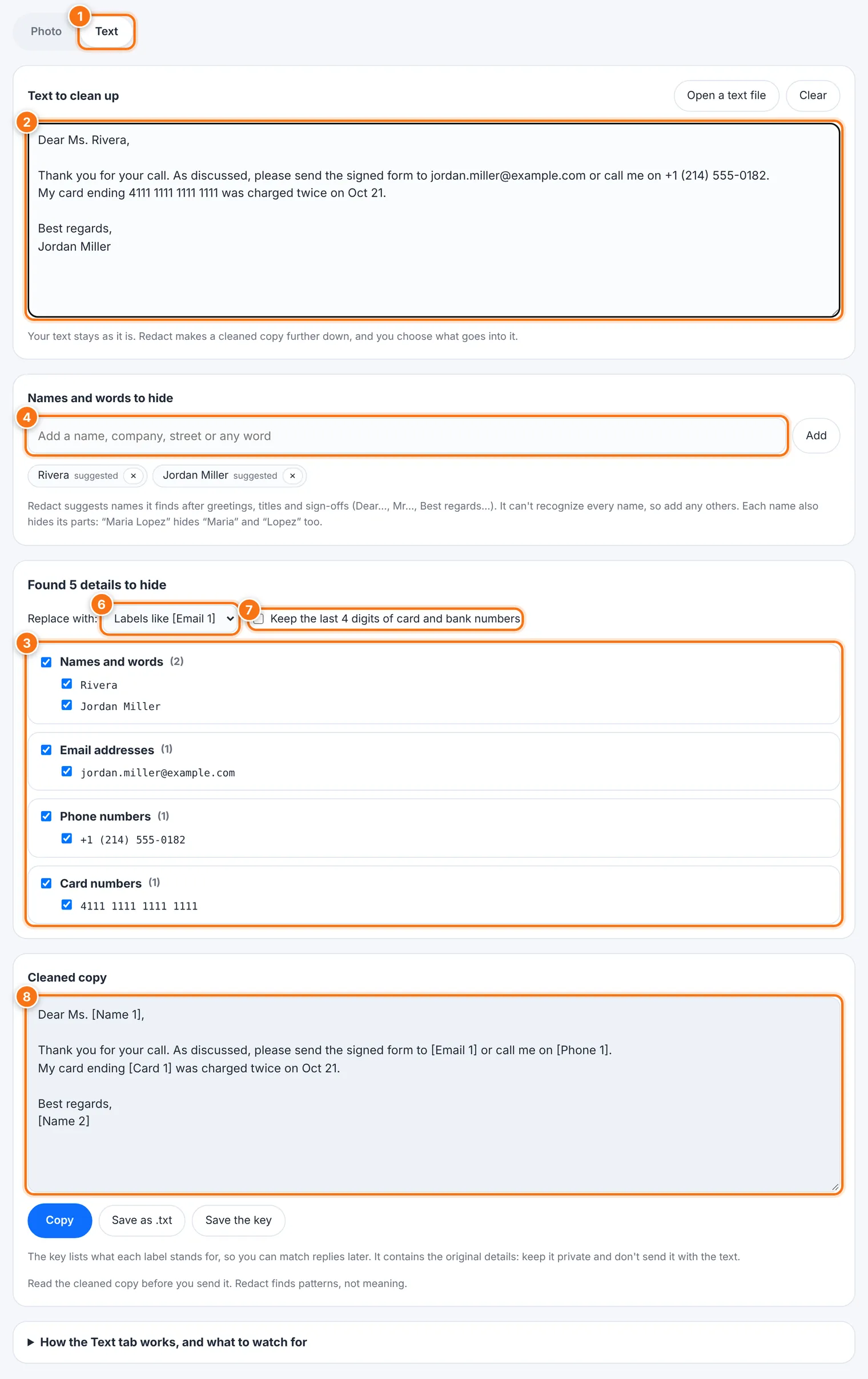
Choose the Text tab.
Paste your text into Text to clean up, or use Open a text file. Your text stays as it is. Redact makes a cleaned copy further down.
Redact finds details that follow a known pattern:
email addresses and IP addresses,
phone numbers (US, Mexico, Spain and international),
card numbers and bank accounts (IBAN and Mexican CLABE), checked so ordinary numbers aren't mistaken for them,
US Social Security numbers and ZIP codes, Mexican CURP and RFC, and Spanish DNI and NIE.
Under Names and words to hide, check the names Redact suggests (it finds them after Dear…, Mr…, Best regards…). Add any others with Add. Hiding Maria Lopez also hides Maria and Lopez.
Untick anything that should stay.
Choose Replace with: Labels like [Email 1], or Black bars. With labels, the same detail always gets the same label, so the text still makes sense.
If you like, tick Keep the last 4 digits of card and bank numbers.
Read the cleaned copy before you send it. Then Copy it or Save as .txt.
The key: Save the key saves a list of what each label stands for, so you can match replies later. It contains the original details. Keep it private, and never send it with the cleaned text.
What it does not do
It works on images, not PDFs or Word files. For a document, take a screenshot first. For the document's hidden data, use Scrub.
Very large pictures are scaled down to about 16 megapixels, because some browsers can't handle bigger ones. The page tells you when this happens.
The Text tab finds patterns, not meaning. It misses details written in words (my birthday is the fifth of May), addresses without a ZIP code, and names it wasn't given.
It can't take back what's already been sent. Anyone who has the original still has everything in it.
Common problems
| Problem | What to do |
|---|---|
| "Redact can open JPEG, PNG, WebP and GIF images" | For a PDF or document, take a screenshot and open that. |
| "That file is larger than 60 MB" | Use a smaller copy. |
| "This browser couldn't open that image" | Save it as JPEG or PNG first, then try again. |
| "A check failed, so the image was not saved" | Try again, or choose the other format (PNG or JPEG). |
| A name in the text wasn't hidden | Add it under Names and words to hide. |
| "That doesn't look like a plain text file" | For Word or PDF files, copy the text and paste it in. |